Definition of Field of View in Gaming
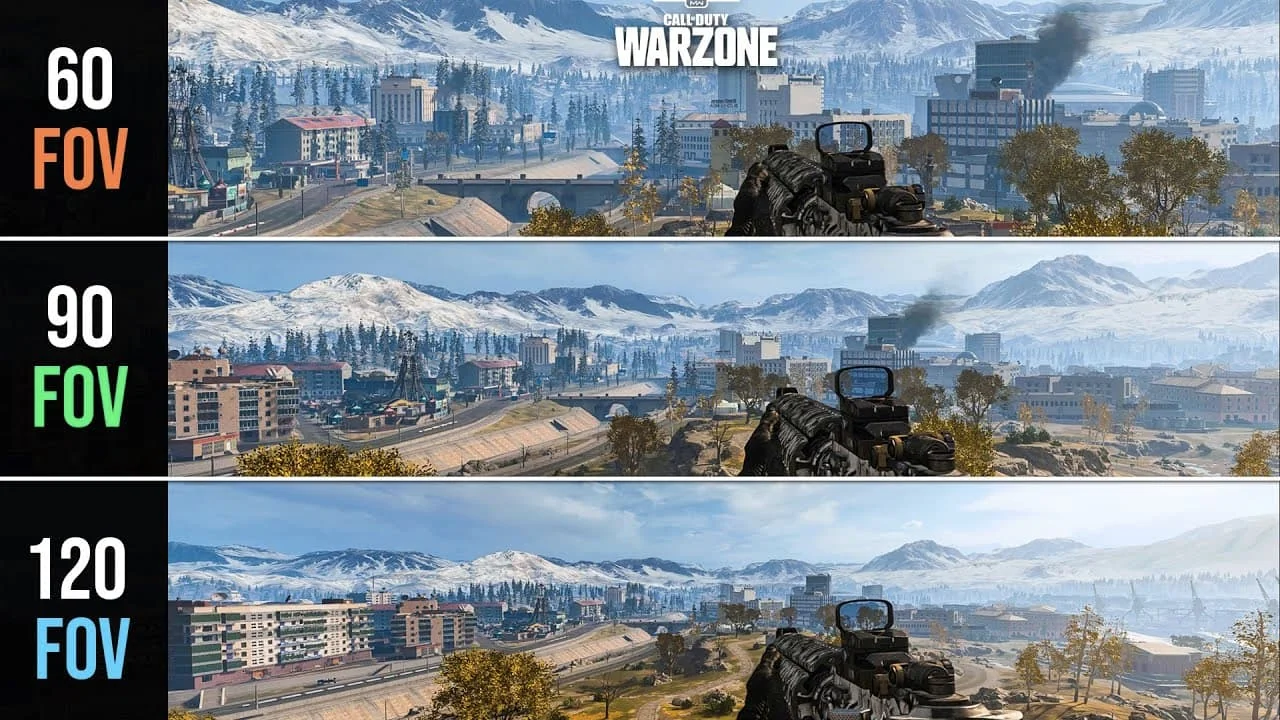
Field of view, or FOV, is a foundational concept in gaming that describes how much of the game world you can see at any moment. In everyday terms, it’s like looking through a window: a wider window reveals more of the surrounding scene without turning your head. FOV is typically described as an angle, measured in degrees, and it depends on the camera, the display’s aspect ratio, and the game’s settings. A higher FOV expands peripheral vision and situational awareness but can introduce distortion and motion blur for some players. Understanding FOV helps players optimize visibility, comfort, and immersion across different genres and hardware setups.

What is Field of View (FOV)?
Field of view defines the span of the world visible on your screen at any moment. Put simply, it is the angle of the scene your game camera can capture. If you imagine standing in a room and peeking through a window, the frame of the window determines how much of the room you can see at once. In gaming, designers often talk about horizontal FOV because most displays are wider than they are tall, and horizontal measurements tend to align with the way our eyes sweep left to right.
Some games also describe vertical FOV, which affects how tall the image appears, especially on tall monitors or when using unusual aspect ratios. The relationship between FOV, distance, and perspective means that a wider FOV makes objects near the edge of the screen appear stretched, while distant objects seem smaller. A narrower FOV reduces peripheral content and can feel more tunnel-like, which is sometimes desired for precision in shooters or racing sims.
The meaning of FOV is not only about how much you can see but also how the camera movement feels: a large FOV can make fast turns feel more dramatic, while a small FOV can help you focus on a target. When you adjust FOV in games, you adjust the balance between awareness and focus, which has a direct impact on reaction times and navigation through crowded scenes.
It is worth noting that FOV interacts with monitor size and resolution: the same FOV value will appear differently on a tiny laptop and a wide ultrawide display. For new players, starting with a moderate FOV and gradually testing wider or narrower values across different titles helps identify a comfortable baseline. The FOV meaning in gaming also ties to how immersive a scene feels: wider angles can increase immersion by showing more of the environment, or they can overwhelm the senses if the frame becomes too busy.
In practice, you will often hear players discuss FOV in the context of play style, genre, and hardware, recognizing that there is no one-size-fits-all setting. By learning how FOV settings in games interact with your display, you can preserve depth cues and motion continuity while maintaining a view that suits your preferences.
Common FOV units and measurements
Common FOV units and measurements are usually described in degrees and relate to how much you can see on the screen at once. Horizontal FOV describes the width of the visible scene from left to right, while vertical FOV describes the height from top to bottom, and many games adjust values based on the display’s aspect ratio. The following table illustrates typical values across common setups to help you compare how FOV is represented on various screens.
| Display Setup | Horizontal FOV (deg) | Vertical FOV (deg) | Diagonal FOV (deg) |
|---|---|---|---|
| Standard 16:9 Desktop (1080p) | 90 | 50 | 100 |
| Widescreen 16:9 (1440p) | 100 | 54 | 110 |
| Ultra-wide 21:9 | 110 | 55 | 125 |
| Legacy 4:3 Monitor | 75 | 60 | 95 |
Reviewing these values helps you calibrate expectations and understand why you might prefer a higher or lower FOV on your specific monitor and in different genres.
FOV in first-person vs third-person perspectives
First-person perspective (1P) and third-person perspective (3P) create fundamentally different visual cues because the camera is positioned differently and often has distinct FOV behavior. In a typical first-person shooter, the camera sits at the player’s eye level, and the FOV is chosen to balance target visibility with spatial awareness.
A wider FOV on a first-person view increases the amount of visible environment and peripheral information, which helps spot enemies creeping in from the sides but can also stretch the horizon and warp depth cues, making distant objects look smaller and moving targets harder to gauge. In many PC games, players can push the FOV beyond the default to reduce tunnel vision, but doing so may introduce distortion along the edges and can cause performance or comfort issues if the eye relaxes during fast motion.
Third-person games place the camera behind or around the character; the FOV there is often higher or adjustable to keep the character and immediate surroundings within view, preserving readable animation and better spatial context. A larger FOV in 3P can reveal more of the environment behind and above the character, assisting navigation through complex levels, though it can reduce the perceived size of the character and affect depth cues.
Many players notice that 1P allows precise aiming with slightly lower FOV values, while 3P benefits from wider angles that show more of the scene, including obstacles and enemies near the edges. Another consideration is camera distance and orientation: in 3P the camera may be offset, causing parallax effects that interact with the FOV to distort distances and movement. In professional or competitive settings, players often default to a specific FOV to maintain consistency, minimize distraction, and optimize reaction time.
Collectively, FOV in both perspectives shapes how you perceive speed, danger, and spatial relationships within a game, affecting situational awareness, target tracking, and overall gameplay feel. When choosing between 1P and 3P FOV, consider your preferred style, the genre, and your monitor setup; what works for a cockpit simulation may feel awkward in an action-adventure, and vice versa.

How FOV is calculated and adjusted
Understanding how FOV is calculated helps you predict how changes will look on your screen. FOV is influenced by the camera’s position, the screen aspect ratio, and the projection used by the game engine. In most games, horizontal FOV is the primary value players adjust, while vertical FOV is derived from it based on the display’s geometry. When you adjust FOV, you are effectively changing the camera’s perspective projection, which alters how perspective cues, parallax, and edge distortion appear during motion.
Practical adjustments begin with identifying the axis the game controls (horizontal vs vertical) and selecting a baseline that matches your monitor’s size and aspect ratio. You should then test in representative scenes crowded streets, corridors, and open spaces to observe how depth and target sizing change with different values.
Step two is to balance visibility with comfort: broader angles improve awareness but can cause distortion or motion sickness for some players, especially on fast-paced titles. Step three involves using the in-game FOV slider or console tweaks where available, progressing gradually by 5 – 10 degree increments and pausing to evaluate comfort and performance.
Step four covers monitor-related considerations: refresh rate, response time, and panel curvature can affect how FOV adjustments feel, so adjust accordingly for immersion and smoothness. Step five focuses on consistency: if you play across multiple games, try to establish a baseline FOV that feels comfortable in the majority of titles, then tweak per game only when necessary to preserve a steady visual experience.
FOV Impact on Gameplay: Visibility, Comfort, and Performance
Field of view, or FOV, is the angular extent of the observable world at any moment in a game. It determines how much of the environment you see without moving the camera. A wider FOV shows more on the sides, improving peripheral awareness in fast paced moments, but can distort geometry and reduce perceived center of focus. Narrower FOV concentrates detail toward the center of the screen, making aiming and tracking more precise but reducing awareness of threats off to the sides. Finding the right balance is a core part of tuning a game to your display, playstyle, and comfort level.
Visibility and situational awareness
Visibility in games is a product of camera perspective, rendering choices, and your monitor setup. Selecting a field of view influences how much of the world you see at once, which elements draw attention, and how easily you can spot threats moving to the periphery.
- Choosing a wider FOV in fast-paced shooters can improve peripheral detection of flanking enemies, but may reduce focus on center of screen and introduce visual distortion at the edges.
- Narrower FOV often sharpens mid-screen focus and can help with motion clarity, yet it hides distant threats and complicates awareness when confronting multiple opponents.
- On console or laptop displays, FOV choices must balance resolution, texture clarity, and frame pacing, since overscan and scaling can exaggerate edge blur if the field is too wide.
- In competitive modes, players often favor medium to wide FOV tuned for quick target acquisition, while setting consistent sensitivity to maintain predictable aiming through changes in view.
- Adjusting FOV in the context of map design and enemy density encourages tactical positioning, since broader views reward map control and smaller windows reward precision in tight corridors.
In practical terms, the right FOV balances awareness with focus, helping you react to threats while maintaining comfort during long sessions.
Comfort and motion sickness
Comfort and motion sickness in gaming are strongly influenced by the field of view and how quickly the scene changes on screen. A FOV that is too wide can pull your eyes toward the periphery, creating a sense of depth distortion or motion blur that your brain struggles to interpret. Conversely, a very narrow FOV concentrates focus and reduces peripheral input, but it can feel claustrophobic and increase the sensation of eye strain over extended sessions.
Symptoms of FOV induced discomfort often include dizziness, headaches, nausea, and a general sense of mismatch between head movements and on screen motion. Factors that worsen symptoms include high frame rates with fast camera pans, low brightness, poor screen lighting, and aggressive motion blur. People new to gaming with sensitive vestibular systems may experience symptoms even at modest FOVs.
Mitigation strategies start with progressive adjustments. Begin with a comfortable baseline FOV, then test in short play sessions, increasing or decreasing by small steps and monitoring how your body responds. Reduce motion blur and aggressive post processing, increase frame rate where possible, and ensure your display has stable refresh rates. Taking breaks every 30 to 60 minutes helps reset the vestibular system, and playing in a well lit room with a steady seating position supports stable perception.
Additional tips include using a smaller HUD, enabling vignette or vignette-like effects to limit peripheral distraction, and turning off camera shake when not essential to the gameplay. If you play in VR, adapt to a different set of rules because your field of view and motion cues are already altered by the headset lenses, so a gentle, gradual adaptation works best.
Performance and technical considerations
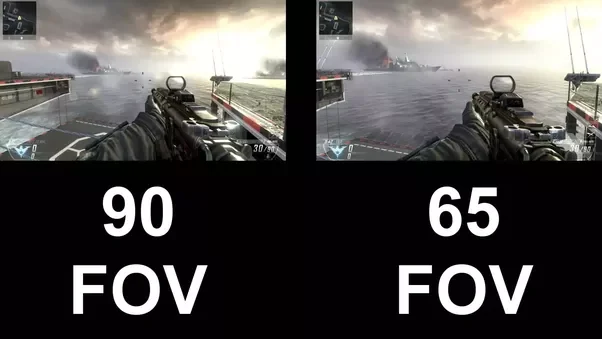
From a rendering perspective, FOV affects not just what you see but what the engine must draw. A wider FOV expands the viewable scene, which translates into more geometry, more enemies potentially visible at once, and more environmental details that must be shaded, shaded, and occluded. The GPU must process more pixels across every frame, particularly at higher resolutions where anti aliasing, shadows, and post processing are already taxing. As a result, enabling larger FOV values can lower sustained frame rates if the hardware is near the performance limit.
Beyond raw pixels, FOV interacts with camera motion, perspective projection, and depth cues. The wider the field, the more exaggerated the apparent depth becomes, which can affect motion perception and motion tracking. Some players notice faster head movements or stronger parallax effects, which may influence comfort and accuracy during rapid exchanges. Conversely, narrow FOVs reduce peripheral stimuli, which lessens the demand on resolution and shading at the cost of situational awareness. Developers can mitigate these costs with level design that respects typical viewing distances and focal points.
Performance budgets often reveal a trade off: if you push FOV higher, you may need to enable lower shadow quality, reduce post process effects, or target higher frame rates. Some engines offer dynamic FOV, which temporarily widens the view during fast movement but snaps back to a narrower value during steady aiming to preserve precision. In non VR games, you can still benefit from fixed quality adjustments such as texture streaming, LOD bias, and culling optimizations that help maintain consistent frame times when FOV is expanded. Finally, testing on your target hardware with your preferred presets is essential to avoid surprises.
Engine developers also optimize around typical FOV values encountered by players, meaning extreme configurations can disable certain culling optimizations or alter shader paths. On PC, enabling variable rate shading, tessellation controls, and adaptive resolution can help maintain smooth frame rates when FOV is increased. On consoles with fixed hardware budgets, using pre baked lighting, baked shadows, and texture streaming optimizations can offset some of the heavy cost of a wider view. The key is to measure your actual frame time distribution under representative scenes and adjust FOV alongside resolution, texture quality, and post processing to keep the gameplay experience fluid.
Examples from popular games and recommended FOV values
Popular titles exhibit a wide range of default FOV values, and understanding these can guide you toward a comfort zone that matches your display and playstyle. The table below shows common defaults and recommended ranges used by players in popular games.
| Game | Default FOV | Recommended Range | Notes |
|---|---|---|---|
| Apex Legends | 90 | 90 -110 | Wider helps with flanks but may distort edges. |
| Valorant | 103 | 100 – 110 | Maintains precision while offering reasonable peripheral awareness. |
| Counter-Strike 2 | 90 | 90 – 105 | Lower end improves close range clarity; adjust with sensitivity. |
| Overwatch 2 | 103 | 95 – 110 | Balanced for hero-based gameplay; watch for eye strain at high values. |
| Call of Duty | 80 – 90 | 85 – 105 | High pace titles benefit from moderate FOV with stable performance. |
When adjusting FOV values, pair them with sensitivity changes and test in actual matches to ensure consistent tracking and comfort across maps and roles.
Product Features and Benefits of Our FOV Solution
Our FOV solution is designed to optimize visibility, comfort, and performance across a wide range of games and displays.
It combines intelligent scaling, precise rendering, and user-driven customization to preserve peripheral awareness without overwhelming the center of the screen.
By aligning field of view with your hardware and playstyle, it helps players maintain spatial orientation during intense moments and long sessions.
The system supports standard FOV sliders, VR comfort options, and profile-based presets that adapt to genres from competitive shooters to immersive sims.
In short, this product aims to balance field of view in gaming with practical constraints like motion sickness, system latency, and accessibility.
Key features of our FOV solution
Our FOV solution centers on delivering crisp situational awareness across diverse play conditions by harmonizing visual breadth with rendering performance, ensuring that peripheral cues remain recognizable without overwhelming the central reticle, and it achieves this through a layered approach that includes dynamic scaling based on camera distance, adaptive vignette control to reduce motion blur in fast sequences, and precise tessellation and level-of-detail strategies that keep edges clean as your field of view expands or contracts.
It also anticipates hardware diversity from compact laptop displays to ultra-wide monitors and headsets by offering consistent transition behavior when switching aspect ratios, preserving consistent motion cues, minimizing abrupt FOV jumps, and providing smooth transitions that are tuned to maintain comfortable frame pacing while preserving action readability.
- Dynamic, player-controllable FOV presets that adjust in real time based on game state, camera angle, and display size to preserve situational awareness.
- Wide compatibility with standard FOV sliders, including auto-tune options for ultra-wide monitors, immersive VR, and multi-monitor setups while preserving performance and motion clarity across diverse hardware configurations.
- Low-latency FOV rendering that minimizes input-to-camera delay, ensuring quick reaction times in fast-paced genres like shooters and racing titles without sacrificing peripheral clarity.
- Perceptual guidance systems that highlight threats and objectives at the edge of vision without cluttering the center screen for better decision making.
- Customizable presets and profiles for genres, playstyles, and display types, enabling quick switching during sessions and streamlining accessibility across single-player and multiplayer modes.
These capabilities collectively create a robust foundation for players who demand both breadth and precision in their field of view, and they form the backbone of a gameplay experience that can scale from casual campaigns to high-stakes eSports.
By integrating these features into a single, coherent framework, developers can deliver consistent visual cues, fewer distractions, and a more intuitive sense of space across devices and genres.
Adaptive rendering for different displays
Adaptive rendering for different displays starts with a baseline rendering pipeline that respects the unique characteristics of each display, including size, pixel density, brightness, and color calibration. It analyzes the active field of view and adjusts sampling rates, edge sharpening, and temporal filtering to maintain legibility of objects at screen edges without introducing artifacts.
For ultrawide monitors, the system expands the effective field of view while constraining center focus to prevent peripheral chaos, and for small or high-DPI screens it reduces unnecessary detail where it would be imperceptible, reallocating resources to preserve frame rate. The feature includes a calibrated interpolation path that keeps motion smooth during camera panning and during changes in FOV, minimizing jitter and tearing.
It also offers a developer-friendly toolkit to test different profiles on target hardware, ensuring that the final experience remains consistent across devices. The result is a dependable balance between breadth and clarity that supports competitive timing and strategic awareness across diverse setups.
Seamless VR comfort features
Seamless VR comfort features start with motion sickness mitigation, including smoother FOV transitions, reduced snap turning, and a frame rate target that remains steady across scenes. The system reduces sudden FOV jumps and applies a gentle transition curve when moving from standard to wide-angle views, minimizing sensory mismatch between head motion and on-screen movement.
It also accounts for headset-specific distortions by pre-warping images and adjusting depth cues so objects retain believable scale and parallax at the edges. Peripheral indicators and horizon cues are tuned to preserve depth perception without overwhelming the user, and users can fine-tune comfort presets for walking sims, flight sims, or fast-paced shooters. In practice, VR gamers experience longer play sessions with less fatigue, clearer depth cues, and fewer instances of nausea, while developers benefit from a plug-and-play approach to VR comfort across titles.

Benefits for different player types (competitive, casual, VR users)
Competitive players rely on precise, predictable FOV to maintain edge awareness and reaction timing. Our solution emphasizes stable peripheral visibility, fast tracking of enemies at the edge of the screen, and minimal latency to prevent timing inconsistencies that can cost a match.
It filters frame data to prioritize core threats while preserving contextual cues from the surroundings, and it offers small, measured FOV adjustments that keep threats within the center while preserving peripheral cues such as flanking routes and subtle motion in the environment. The presets for ranked modes are tuned to maximize clarity without introducing eye fatigue, and the system supports rapid profile switching during tournaments or scrims.
Gamers can customize sensitivity and field of view to optimize crosshair alignment, recoil control, and scene parsing, ensuring that every frame communicates critical information efficiently. Additionally, auto-tune logic can adapt to changing network conditions and dynamic matchmaking lengths, maintaining stable visibility even as frame rates dip.
Casual players benefit from a more forgiving set of defaults that enhance immersion without demanding constant adjustment. Our approach provides easy-to-use presets that expand or narrow FOV to match pacing, camera motion, and preferred comfort levels, helping players stay engaged during exploration, puzzle solving, and cinematic scenes.
By presenting a simple reset option and a guided tour of recommended profiles, we reduce friction between enjoying a game and managing technical settings. For many players, the right balance is the difference between a tense moment feeling overwhelming and a moment of confident, relaxed discovery. The system also supports auto-snap transitions when switching between on-foot and vehicle segments, keeping the on-screen information stable and readable during fast sequence changes.
VR users require depth cues and stereoscopic consistency; our FOV tuning respects headset optics and lens distortion, as well as room-scale tracking. The system includes a per-eye FOV adjustment to align with headset-specific sweet spots and applies consistent parallax across eyes.
Smooth transitions prevent motion sickness during quick head turns, and comfort presets curb peripheral jitter during high-acceleration sequences. Developers can ship these settings as default VR profiles that maintain immersion while reducing fatigue, giving players a more comfortable, longer-lasting virtual experience.
In addition, profile switching is supported for different playstyles and games, allowing players to tailor FOV configurations for competitive modes, story campaigns, and training sessions with a single click.
Compatibility and integration with games and hardware
Our FOV solution is designed for broad compatibility across PC and console ecosystems, working with Windows and major game engines to integrate with existing rendering pipelines without requiring invasive changes. It supports Unreal Engine, Unity, and other popular frameworks through a modular plugin approach, enabling developers to expose FOV controls to players while preserving engine optimizations and rendering budgets.
The system can read display metadata, adapt to multiple GPUs, and coordinate with anti-aliasing and motion blur settings to maintain consistent edge clarity across scenes. For VR titles, it aligns with headset APIs, distortion corrections, and per-eye rendering paths to ensure uniform depth perception and comfortable experiences.
On the hardware side, it gracefully scales from laptops to high-end desktops and remains effective with a wide range of displays, including ultra-wide, standard, and curved panels, as well as popular VR headsets. In practice, this translates to faster onboarding for developers and a smoother, more predictable experience for players across platforms.
When integrating, teams should consider creating device-specific profiles that automatically adjust FOV presets based on detected hardware, screen size, and mode (competitive vs. narrative). The solution provides a clear API surface for managing FOV state, transitions, and performance budgets, helping ensure that visual fidelity and gameplay readability stay aligned with target frame rates.
Documentation includes best practices for testing FOV changes in both first-person and third-person perspectives, guidance for accessibility considerations, and recommended defaults for common genres to support consistent player experiences from launch-day titles to ongoing live-service games.
Expected outcomes include improved spatial awareness, reduced motion-induced discomfort, and higher player satisfaction across diverse gaming scenarios, all achieved with minimal developer overhead and maximal compatibility with current and future hardware expansions.

Specifications, Comparisons, and Promotional Offers
Understanding the field of view (FOV) in gaming is essential for balancing visibility and comfort across different displays. This H2 section explores technical specifications, how FOV compares across platforms, and current promotions that help gamers optimize their FOV setup. You will find detailed technical guidelines, side-by-side comparisons of popular FOV implementations, and tangible offers on gear that enhances field of view. We also cover practical tips for choosing the right FOV for monitors, ultrawide screens, and VR headsets, along with how to redeem promotions. All content is tailored to readers of GuiltyGearGame, with a focus on meaningful, actionable information rather than fluff.
Technical specifications and system requirements
Technical specifications and system requirements for field of view settings begin with understanding that FOV is primarily a rendering parameter defined by a game’s camera system rather than a fixed hardware capability. In practice, FOV is described in degrees and controls how wide the virtual world appears on your screen.
On a typical desktop monitor, most first person and third person titles expose a horizontal FOV slider that ranges roughly from 70 to 110 degrees, with 90 degrees forming a comfortable middle ground for standard 16:9 displays. Some titles push past 110 degrees for wide monitors or 21:9 aspect ratios, while others cap at lower values to avoid distortion at the edges or to maintain a consistent sense of scale for competitive play.
VR experiences, by contrast, render per-eye FOV and combine it with head tracking; the effective immersion often feels like a 100 to 120 degree corridor, even though headset optics and lens distortions can alter perceived coverage. To match these settings, users should verify not only the in-game FOV but also their display’s size, distance from the screen, and the monitor’s aspect ratio, because the same angular FOV can produce different on-screen coverage on different hardware.
Minimum and recommended hardware for games employing wide or dynamic FOV also matter because a larger field of view increases pixel fill and shading demands. For 1080p gaming at moderate FOV, a mid-range GPU such as a recent RTX 2060 or RX 5700 and a quad-core or higher CPU with 8 to 16 GB of RAM are usually sufficient to maintain smooth frame rates, provided you adjust other settings like shadows and ambient occlusion. If you push toward 110 degrees on 1440p or 4K targets, more powerful GPUs from the RTX 3060/4070 tier or the RX 6700/XTX class are often necessary to preserve high frame rates, especially in fast action titles. In VR, the requirements scale differently because each eye renders a separate image, so the GPU load can effectively double for some scenes; a capable VR-ready GPU paired with a fast CPU and at least 16 GB RAM helps keep latency low and motion smooth.
A practical rule of thumb is to test a few FOV presets across low, medium, and high on your target resolution and monitor setup, then compare performance metrics while ensuring input latency stays under the 20 to 40 millisecond range.
Display technology and rendering pipelines influence how FOV feels in practice. The choice of monitor size, distance from the screen, and panel type can amplify or reduce the perceived impact of a given FOV setting. A 24- to 27-inch monitor at arm’s length will map angular coverage differently than a 34-inch ultrawide or a head-mounted display, so players should consider the geometry of their setup when choosing a preset. Monitors with higher pixel density and faster refresh rates help preserve image clarity at higher FOV values, while aggressive post-processing like motion blur or lens distortion can magnify discomfort at the edges. VR headsets introduce another layer: per-eye renders and lens-induced distortion mean that large FOV changes should be tested with measured comfort, as unrealistic FOV can contribute to eye strain or nausea if you pair it with rapid motion. The practical approach is to start with a conservative FOV and incrementally adjust until you notice distortion or performance dips, then tune resolution, anti-aliasing, and motion options to recover balance.
Multi-monitor and ultrawide configurations offer expansive coverage but demand careful FOV scaling. Some titles support independent field of view per panel or automatically adapt geometry for curved displays, while others impose a global FOV that may stretch interfaces or blur crosshair alignment. In practice, gamers may set a narrower FOV on edge panels to avoid distortion or rely on native ultrawide support to keep the perspective consistent across the field. For competitive play, many players prefer modest FOV values to preserve precise aiming and reduce peripheral motion, whereas for exploration or sim racing, higher FOV can increase situational awareness. Regardless of genre, the goal is to choose a FOV that fits your seating distance and display footprint, then validate comfort and performance by monitoring frame rates and input latency after any driver or game updates.
Software tools and game settings can provide additional control over FOV behavior. Some titles offer dynamic or sprint-based FOV that adapts during movement, while others stick to a fixed value for consistency. If you rely on a preset, save multiple profiles for different displays or lighting conditions and switch with a hotkey or a quick menu command. Keep your graphics drivers current to maximize support for widescreen rendering and VR lenses, and consider turning off post-processing features that artificially distort the image if you notice edge blur at higher FOV values. By documenting your preferred FOV values and the reasons you chose them, you’ll be prepared to recreate comfortable, immersive views across new games and hardware upgrades.
Comparison with competing solutions
Field of view implementations differ across engine ecosystems, platforms, and game genres, and those differences shape how players experience visibility, speed, and comfort. On PC, engines like Unreal and Unity expose flexible FOV controls that can be adjusted quickly, allowing players to tailor horizontal FOV to their monitor width and seating distance. In contrast, some console titles operate within stricter defaults or limited ranges to maintain uniform gameplay experiences across fixed hardware. The result often is a broader range of FOV values on PC that produce more peripheral awareness, and a narrower range on consoles that prioritizes consistent aim mechanics and frame rate stability. When comparing VR and flat-screen experiences, VR delivers immersive coverage through per-eye renders but imposes hardware constraints that limit maximum achievable FOV without sacrificing latency or clarity. VR headsets vary in their native FOV and lens distortion, so the perceived field of view can feel larger or smaller than the declared per-eye angle depending on headset optics and room lighting.
Another axis of comparison is the impact of FOV on motion and comfort. Higher FOV tends to increase peripheral motion and can boost immersion, but it can also elevate the risk of motion sickness for sensitive players, especially during rapid camera movement. Some games implement dynamic FOV that expands during sprinting or acceleration to enhance spatial awareness, while others keep a fixed FOV to preserve precise aiming cues. Ultra-wide monitors and 21:9 aspect ratios effectively widen horizontal coverage without altering the core camera geometry, though not all titles render perfectly on non-standard aspect ratios, leading to stretching or letterboxing in some UI elements. For competitive play, players often constrain FOV to minimize distortion and keep a consistent target scale, whereas story-driven titles or sims frequently benefit from broader FOV for environmental cues and exploration. In short, the most effective FOV choice balances target genre, display hardware, and personal comfort, with PC games offering the broadest tuning potential and console titles providing more uniform, out-of-the-box experiences.

Current promotions, bundles, and trial information
Promotions in this space typically focus on gear that enhances the FOV experience. Look for limited-time bundles that combine ultra-wide monitors with game titles or accessories that support wider field coverage, such as high-refresh-rate displays, HDR upgrades, or curved panels that improve peripheral visibility. Some retailers offer discounts of 10 – 25% on ultra-wide setups or 5 – 15% on VR bundles, often accompanied by free accessories like display calibrators or HDMI/DisplayPort cables to ensure maximum fidelity when expanding FOV. Bundles may also include trial access to premium optimization guides or beginner courses that teach players how to tune their FOV, comfort settings, and graphical presets for different genres. For VR enthusiasts, special promotions may include extended warranty or trade-in offers for older headsets, helping you upgrade to a headset with a wider perceived FOV or faster refresh rate. Always verify whether offers apply to digital items, hardware, or bundles, and read the terms for eligibility and shipping windows.
Trial information commonly features time-limited access to tutorials or curated presets that show how FOV changes affect visibility in specific games. Some sites offer a 7-day or 14-day trial period for premium content that covers monitor calibration, VR comfort practices, or performance optimization. Promotions may require signing up for newsletters or creating an account to unlock trial access, and some trials are tied to the purchase of a related product. If you are evaluating a purchase decision, compare trial availability, required commitments, and total cost after discounts to ensure that you receive lasting value beyond an initial promotional period.
How to purchase and redeem offers
To purchase an offer, start by selecting the item or bundle that fits your display setup and confirm its price with the current promotion. Add the item to your cart, then proceed to checkout where you will be prompted to enter shipping information and payment details.
During checkout, look for a promo code field or automatic discount indication; if a code is required, copy and paste it exactly as shown in the promotion listing. After payment, you will receive a confirmation email with an order number and a download or redemption link for any digital content or extended trial access.
If the offer includes a hardware component, expect standard shipping times and a delivery window provided at checkout. For digital content, the redemption typically occurs instantly on the order confirmation page or via a dedicated redemption section in your account profile.
Once your purchase is complete, sign in to your account and navigate to the redemption area if required. If you have a trial or premium content, open the linked access page or download the content from your account, then follow any on-screen prompts to activate it.
Some trials require you to install a companion app or to log into a partner platform; in those cases, ensure you authorize the app with the correct account. If you encounter issues, contact customer support with your order number and the promo code used, and keep a copy of the promotional terms in case you need to verify eligibility later.
By following these steps, you can maximize value from FOV-related promotions while maintaining a smooth setup experience across your hardware and software configuration.